

Work Hours Calculator – Hours Worked with Breaks
Calculate hours worked · Weekly timecard · Decimal hours · Pay estimate
Enter start time, end time, and break minutes for each day worked. Leave blank to skip a day.
| Day | Start | End | Break | Hours (HH:MM) | Decimal |
|---|
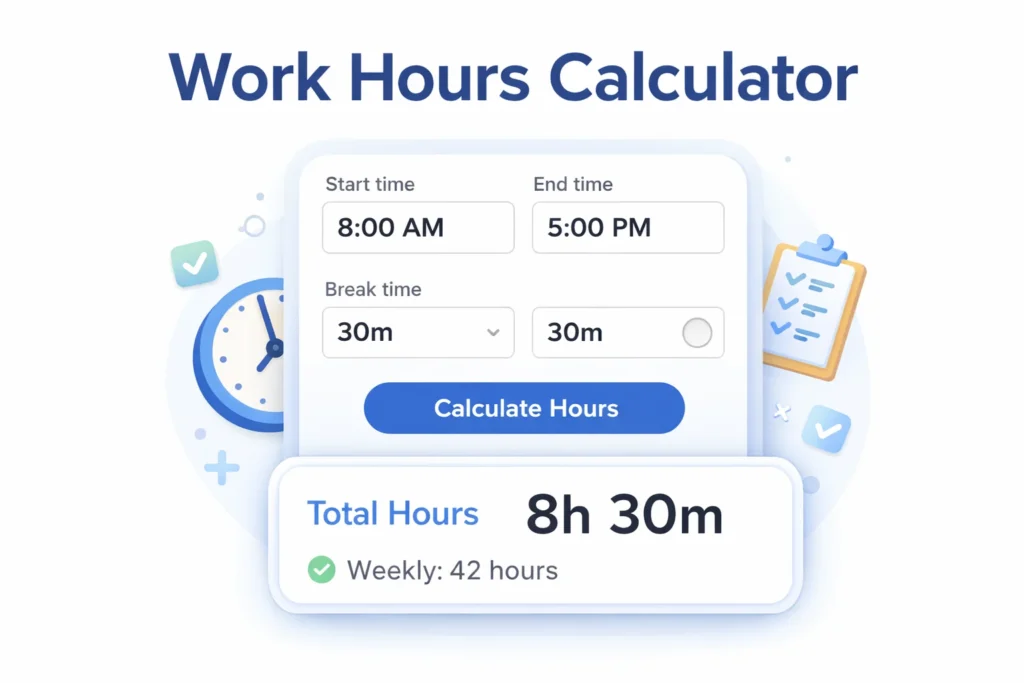
Use the work hours calculator to find out exactly how many hours you worked between two times. Enter your start time, end time, and break, and the result appears instantly.
The calculator shows your hours in two formats. Standard HH:MM for timesheets and decimal hours for payroll. Both update at the same time so you can copy whichever format you need.
How to Calculate Hours Worked
The formula is simple. Subtract start time from end time, then subtract your break time.
End Time − Start Time − Break = Net Hours Worked
For example: 9:00 AM to 5:30 PM with a 30-minute lunch is 8 hours worked. In decimal format that is 8.00. For 9:00 AM to 5:45 PM with a 45-minute break, you get 8 hours exactly.
Working past midnight changes the calculation. An overnight shift from 10:00 PM to 6:00 AM is 8 hours, not a negative number. The calculator handles this automatically when you enable the overnight toggle.
Work Hours Calculator with Lunch and Breaks
Most time calculators ignore break time. That leads to wrong totals.
This calculator deducts your break automatically. Enter total break minutes including lunch. The result shows net work hours only, which is what your employer actually pays.
If your break is unpaid, deduct it. If your break is paid, leave the break field at zero. The difference matters for weekly payroll totals.
Legally, in the US, breaks under 20 minutes are generally paid. Meal breaks of 30 minutes or more are typically unpaid. Check your employment agreement for your specific rules.
Weekly Timecard: Calculate Total Work Hours for the Week
The weekly timecard tab tracks each day separately. Enter start time, end time, and break for Monday through Sunday.
Totals appear as weekly hours, decimal hours, days worked, and daily average. The table shows each day individually so you can spot discrepancies before submitting your timesheet.
Typical full-time schedules:
- 40-hour work week: 5 days × 8 hours
- 37.5-hour work week: 5 days × 7.5 hours
- 4-day work week: 4 days × 10 hours (also 40 hours total)
- Part-time: varies by contract
The 40-hour threshold matters for overtime. Hours above 40 per week are overtime in most US states under the FLSA. To count exact working days in a period, use the Working Days Calculator.
Decimal Hours Explained
Payroll systems use decimal hours, not HH:MM. One hour is 1.00. Thirty minutes is 0.50. Fifteen minutes is 0.25. Forty-five minutes is 0.75.
The conversion formula: minutes ÷ 60 = decimal fraction.
| HH:MM | Decimal |
|---|---|
| 7:00 | 7.00 |
| 7:15 | 7.25 |
| 7:30 | 7.50 |
| 7:45 | 7.75 |
| 8:00 | 8.00 |
| 8:30 | 8.50 |
Copy the decimal value directly from the calculator to your payroll spreadsheet or timesheet software.
How to Calculate Hours Worked in Excel
If you track time in Excel, the formula depends on your cell format.
For time values stored as HH:MM, subtract start from end and multiply by 24.
=(B1-A1)*24
To deduct a break stored in minutes:
=(B1-A1)*24 - (C1/60)
For overnight shifts, use:
=MOD(B1-A1,1)*24 - (C1/60)
The MOD function handles cases where end time is earlier than start time on the clock. Format the result cell as a number, not as time.
In Google Sheets, the same formulas work. The MOD approach is the most reliable for overnight and rotating shifts.
Work Hours and Pay Calculation
To calculate gross pay, multiply decimal hours by your hourly rate.
Hours × Hourly Rate = Gross Pay
At $18.50 per hour for 40 hours: 40 × $18.50 = $740.00 gross weekly.
Part-time at 25 hours: 25 × $18.50 = $462.50.
The pay summary tab in the calculator does this automatically. Enter your total decimal hours and hourly rate, select your pay period, and gross pay appears for weekly, bi-weekly, or monthly periods.
This is base pay only. For overtime pay at 1.5× rate, use the Overtime Pay Calculator.
Annual Work Hours
Knowing your yearly hours helps with salary comparisons and benefits planning.
Standard full-time work hours per year in the US:
- 52 weeks × 40 hours = 2,080 hours per year
- Minus 10 public holidays × 8 hours = 1,920 paid hours
- Minus typical 2 weeks vacation = 1,840 actual worked hours
Salaried employees can divide annual salary by 2,080 to find their effective hourly rate. This is useful when comparing job offers with different structures.
Common Work Schedule Calculations
A few specific schedules come up frequently:
8-hour work day with 30-minute lunch Clock in 9:00 AM, clock out 5:30 PM. Net work: 8.00 hours. Many employers require employees to account for this full 8.5-hour window even though only 8 hours are paid.
9 to 5 work hours 9:00 AM to 5:00 PM with a 30-minute break is 7.5 hours worked, not 8. A full 8-hour day starting at 9:00 AM ends at 5:30 PM with a 30-minute break, or 5:00 PM with no break.
12-hour shift 7:00 AM to 7:00 PM with a 30-minute break is 11.5 hours worked. Common in healthcare and manufacturing.
Night shift 10:00 PM to 6:00 AM with a 30-minute break is 7.5 hours worked. The calculator handles this with the overnight toggle.
Frequently Asked Questions
Conclusion
The work hours calculator covers single-day shifts, full weekly timecards, and pay estimates. Whether you need hours in HH:MM format for a paper timesheet or decimal hours for payroll software, both appear instantly.
Find all time and work tools in one place at our Work & Time hub.