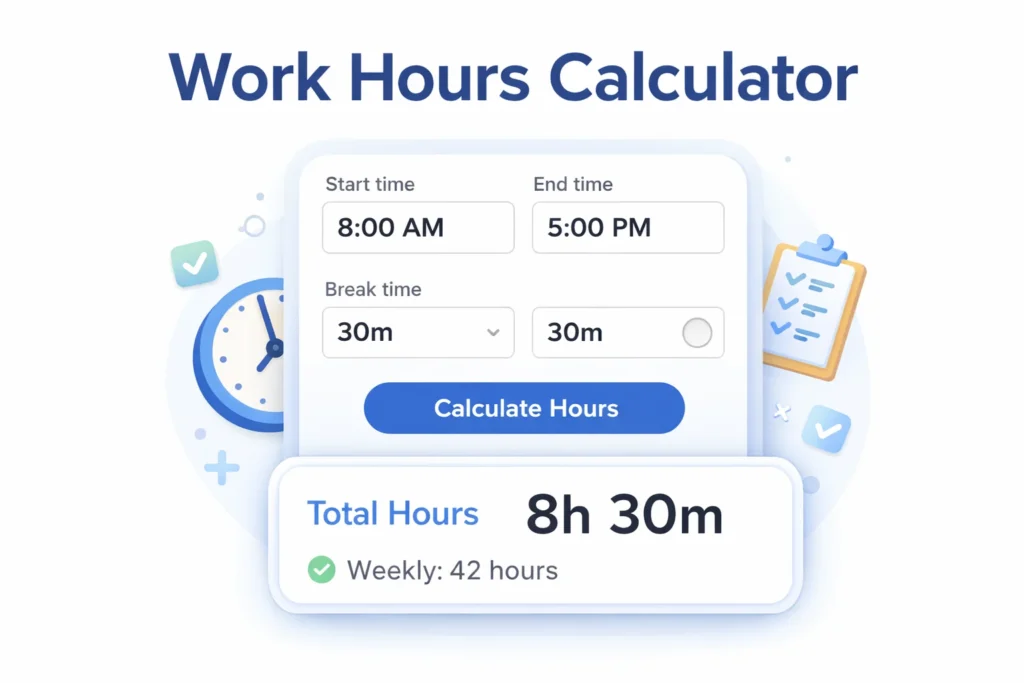

Work Hours Calculator, Calculate Hours Worked Quickly

Calculate one work shift, subtract breaks, and estimate weekly hours without turning this into a timesheet tool.

Overnight shift Turn this on if your shift ends after midnight.
Your result Calculated
Daily worked time 0h 00m
Worked time after break deduction.
Shift length 0h 00m
Break deducted 0h 00m
Decimal hours 0.00
Weekly estimate Not selected
This calculator shows one shift only. Weekly estimate is a simple multiplier, not a weekly timesheet.

A work hours calculator helps you find total hours worked in one shift. You only enter start time, end time, and break duration. The tool subtracts break time and shows accurate worked hours instantly.

It works for employees, freelancers, and employers who track daily work time. You can also handle overnight shifts without doing manual calculations.

This tool focuses on single shift calculations only. It avoids confusion with weekly, payroll, or overtime tools.

  • Enter start and end time
  • Add break hours and minutes
  • Enable overnight shift if needed
  • Get total hours and decimal output

The result is clear and easy to read on any device.

Work hours calculator showing start time end time and total hours result

Calculate Work Hours for One Shift

This explains how the work hours calculator handles one shift. You only calculate a single working period without weekly complexity.

The tool follows a simple process:

  • Take start time and end time
  • Find total shift duration
  • Subtract break time
  • Show final worked hours

This keeps the calculation fast and accurate for daily use.

What This Calculator Does

The calculator focuses on real work scenarios. It calculates hours worked between two times with break deduction.

It also handles overnight shifts without errors. The result appears in hours, minutes, and decimal format.

Who Can Use This Tool

This tool fits different users with simple needs.

  • Employees tracking daily working hours
  • Freelancers calculating billable time
  • Employers checking shift duration quickly

It helps avoid mistakes in manual time tracking.

Enter Start Time and End Time Correctly

Start time and end time are the core inputs of this tool.
Accurate input ensures correct calculation of total worked hours.

Always enter both values before running the calculation.
The system reads time in a consistent format for better accuracy.

Time Input Format Explained

Use the time picker or enter time in hours and minutes.
Both inputs must follow the same time format.

  • Example, 09:00 to 17:00
  • Example, 10:30 to 18:15

This keeps the calculation clear and avoids confusion.

Common Time Entry Errors

Many users make small mistakes while entering time.
These errors can lead to incorrect results.

  • Entering end time earlier than start time
  • Mixing AM and PM incorrectly
  • Forgetting to enable overnight shift

Always double check your time inputs before calculating.

Subtract Break Time from Work Hours

Break time reduces your total working hours.
This ensures the result reflects actual time spent working.

You can add break hours and minutes separately.
The tool automatically subtracts this from shift duration.

Break Hours and Minutes

Break input is flexible for different work schedules.

  • Add full hours if you have long breaks
  • Add minutes for short lunch or rest breaks

This gives accurate results for real work conditions.

Why Break Deduction Matters

Ignoring break time can inflate your working hours.
This leads to incorrect time tracking and payroll issues.

Break deduction helps:

  • Match real working hours
  • Keep records accurate
  • Avoid overestimating time worked

Handle Overnight Shifts Easily

Some shifts continue past midnight and end the next day.
This can confuse manual calculation and lead to wrong results.

The tool includes an overnight option to fix this issue.
It adjusts the calculation when end time is smaller than start time.

When to Use Overnight Option

Use this option when your shift crosses into the next day.

  • Night shifts starting in evening and ending in morning
  • Late shifts ending after midnight

This ensures correct total hours without negative values.

Example Overnight Shift

A simple example helps understand this case clearly.

  • Start at 10:00 PM
  • End at 6:00 AM next day

The tool calculates full shift duration automatically.
You only need to enable the overnight option.

Choose Display Mode for Accurate Results

The calculator gives two ways to show your result.
You can choose based on your work or payroll needs.

Exact Time Calculation

This mode shows precise hours and minutes worked.
It is useful for detailed time tracking and records.

  • Shows full minutes without rounding
  • Best for personal tracking

Rounded Time Calculation

This mode rounds time to the nearest 15 minutes.
Many companies use this method for payroll systems.

  • Reduces small minute differences
  • Matches standard time rounding rules

View Work Hours Result Clearly

After calculation, the result replaces the input area completely.
This keeps the screen clean and focused on final output.

You see only what matters, total worked time and summary details.
The layout is simple and easy to read on mobile devices.

example of calculated work hours with break deduction and decimal output

Total Worked Time

This is the main result shown after calculation.
It displays final hours after subtracting break time.

  • Shown in hours and minutes
  • Easy to understand at a glance

Shift Length and Break Summary

The tool also shows supporting details for clarity.

  • Total shift duration before break deduction
  • Total break time removed from shift

This helps you verify your calculation quickly.

Decimal Hours Output

Decimal hours are useful for payroll and billing tasks.
The tool converts worked time into decimal format automatically.

  • Example, 7 hours 30 minutes becomes 7.5 hours
  • Useful for hourly rate calculations

Edit or Reset Your Calculation

The tool gives full control after showing results.
You can adjust or restart without refreshing the page.

Edit Inputs Button

This button returns you to the input form.
Your previous values remain saved for quick edits.

  • No need to re-enter all data
  • Helps fix small mistakes quickly

Start Over Button

This option clears everything and resets the tool.

  • Removes all inputs and results
  • Returns to default state

This keeps the experience clean and simple.

How to Calculate Work Hours Manually

You can calculate work hours without using any tool.
This method helps you understand how the result is formed.

Follow a simple step by step process for accuracy.

Step by Step Method

Start by converting time into total minutes.
Then subtract break time from the total duration.

  • Convert start time into minutes
  • Convert end time into minutes
  • Subtract start from end
  • Deduct break minutes
  • Convert result back into hours

This gives the same result as the calculator.

Simple Example

A basic example makes this easier to understand.

  • Start time, 9:00 AM
  • End time, 5:00 PM
  • Break, 1 hour

Total shift is 8 hours.
After break deduction, total becomes 7 hours.

You can also convert this into decimal format easily.

Calculate Hours Worked in Real Situations

Real life scenarios help you use this tool correctly.
These examples match common work patterns.

Office Shift Example

A standard office schedule is simple to calculate.

  • Start at 9:00 AM
  • End at 5:00 PM
  • Break of 1 hour

Final worked time becomes 7 hours.

Part Time Work Example

Part time shifts are shorter and often have no break.

  • Start at 2:00 PM
  • End at 6:00 PM

Total worked time is 4 hours.

Night Shift Example

Night shifts require overnight handling.

  • Start at 10:00 PM
  • End at 6:00 AM

With overnight option, total hours are calculated correctly.

Convert Hours and Minutes to Decimal Hours

Decimal hours are often used in payroll and billing systems.
They make calculations easier when working with hourly rates.

This format converts minutes into a fraction of an hour.

Conversion Method

You only need a simple formula to convert time.

  • Take total minutes
  • Divide minutes by 60
  • Add result to total hours

This gives the decimal value of worked time.

Example Conversion

A quick example makes this clear.

  • 7 hours and 30 minutes equals 7.5 hours
  • 8 hours and 15 minutes equals 8.25 hours

This format is useful for accurate pay calculations.

Common Mistakes When Calculating Work Hours

Small mistakes can lead to wrong results.
It is important to avoid common calculation errors.

Ignoring Break Time

Many users forget to subtract break duration.
This increases total working hours incorrectly.

Always remove unpaid break time from your shift.

Wrong Time Format

Incorrect time format creates confusion and wrong results.

  • Mixing AM and PM
  • Entering time in different formats

Use a consistent format for both inputs.

Not Using Overnight Option

Night shifts require special handling.
Without overnight option, results may be incorrect.

Always enable it for shifts crossing midnight.

Difference Between Work Hours and Paid Hours

These two terms are often confused by users. Understanding the difference helps avoid payroll errors.

Work Hours

Work hours include total time spent during the shift. This may include break time depending on context.

Paid Hours

Paid hours exclude unpaid breaks from total time. This is the actual time used for payment calculation.

Use Cases for Work Hours Calculator

Different users rely on this tool for daily time tracking.
It fits simple tasks without needing complex systems.

For Employees

Employees can track daily working hours easily.
This helps verify hours before submitting a timesheet.

  • Check shift duration quickly
  • Avoid mistakes in recorded hours

For Freelancers

Freelancers often bill clients based on hours worked.
This tool helps calculate time for each task.

  • Track billable hours per project
  • Convert time into decimal for invoices

For Employers

Employers can review shift duration without extra tools.
This helps validate time entries and avoid errors.

  • Check employee shift length
  • Confirm break deductions

Frequently Asked Questions

Enter start time, end time, and subtract break duration. The tool handles the rest automatically.

A standard full day is usually 8 working hours. This excludes unpaid break time.

Compare worked hours with standard daily or weekly limits. Extra time beyond limit counts as overtime.

Use time formulas by subtracting start from end time. Then convert result into hours format.

Why Use This Work Hours Calculator

This tool keeps time calculation simple and accurate.
It removes the need for manual calculations.

  • Fast results with minimal input
  • Clear output without confusion
  • Works smoothly on mobile and desktop
  • No login or setup required

Summary of Work Hours Calculation

This work hours calculator helps you find total hours worked easily. It calculates shift duration and subtracts break time automatically.

You can handle overnight shifts and get accurate results instantly. The result is shown clearly in hours, minutes, and decimal format. It keeps calculation simple for one shift without extra complexity.